

视频教程
创建账户
添加设备
设置用户
To receive an annual consolidated invoice for all CMS‑10R devices, you must first create a billing group and then assign the relevant devices to this group.
- Open your profile.
- Go to the account settings in the top right corner.
- Select Billing groups.
- Create a new billing group.
- Configure the billing period and payment method.
- Save the settings by selecting Apply.
- Then switch to the device view and open the Service profile of each device.
- Assign all CMS‑10R devices individually to the created billing group.
Note:
Billing groups can only be created and managed by the owner of the devices.
To change the owner of a CMS‑10R device in the IoT portal, proceed as follows.
Open the IoT portal at iot.comatreleco.com on your PC, laptop or tablet and sign in with your credentials.
Select the desired CMS‑10R device to open the device view.
Open the Manage tab in the menu.
Click the blue button Change owner.
Enter the email address of the new owner.
You will also be asked “Are you the owner of the device?”.
This refers to the future owner:
Installers who set up the device for a customer select No.
Owners who want to transfer the device to another person select Yes.One of the following messages will appear in the info box.
6.1 Existing user
If the new owner already has an IoT portal account, an ownership request email is sent.
Important:
If the new owner has no payment method stored, the device cannot be transferred and no invitation is sent.
The future owner must first add a payment method in the IoT portal.
After that, the current owner can start the transfer again.
Once the invitation has been sent, the new owner must sign in to the IoT portal and confirm the request using the link in the email.6.2 User not found in the database
If the new owner does not yet have an IoT portal account, an invitation to create an account is sent by email.
After creating and verifying the account, the ownership request can be accepted via the link in the email.
A user account is mandatory, as these details are used for future billing.Once the ownership request has been accepted, the previous owner receives a confirmation email.
Until the invitation is accepted, the device remains the property of the current owner, including ongoing billing.
Note:
This service is subject to a fee.
For this purpose, a fully completed order form is required.
The annual cost of the CMS‑10R service profile is paid by the owner of the device.
Every user must first set up a default payment method before a device can be transferred to them.
Users who only receive notifications but do not own a device do not need to provide payment information.
Set up a payment method
- Sign in to the IoT portal at iot.comatreleco.com.
- Open Account Settings in the upper right corner.
- Go to the Payment Method submenu.
- Click Add Payment Method.
- Enter your credit card details.
- Complete the process by clicking Add.
- The new payment method will then appear in the overview.
- Set the newly created payment method as the default.
Note
Due to geo‑blocking and other security mechanisms used by some banks, the country of the credit card must typically match the user's current location when the payment method is created.
What happens next?
All purchases and paid services within the IoT portal will be charged to the default payment method.
The billing address can only be changed by the owner of the device in the IoT portal.
- Open the IoT portal at iot.comatreleco.com and sign in using your email address and password.
- Open the account settings. There you can update your billing details.
- Save the changes to apply the updated information.
Note:
If the owner is a company, a valid VAT number must be provided.
These details are used for future billing.
If you have forgotten your password for the IoT portal, you can use the “Reset password” function to set a new password for your account.
Procedure
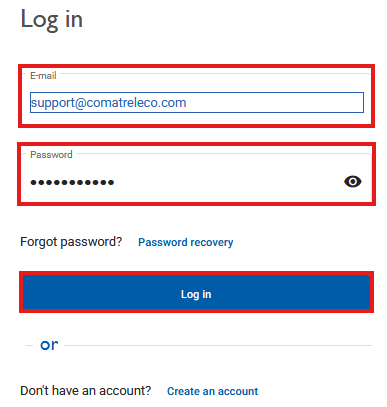
- Open the IoT portal in your web browser or mobile app at iot.comatreleco.com.
- Click “Reset password” in the login window.
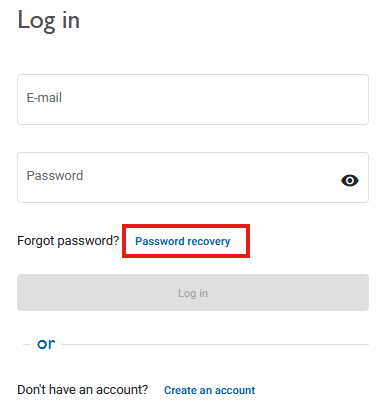
-
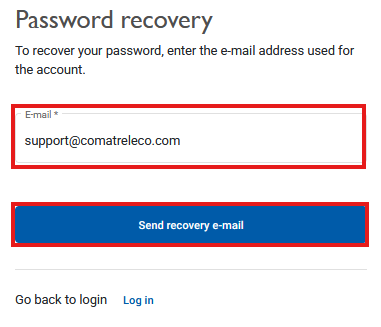
Enter your email address and click
“Send recovery email”.
You will receive an email shortly from ComatReleco IoT Portal .
If you do not receive an email, please check:
- your spam folder,
- whether you used the email address associated with your account,
- for possible typing errors in the email address.
Set a new password
Open the email and click the link “Reset my password”.
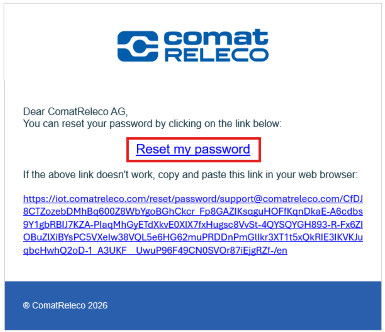
A new window will open in your web browser or app.
Enter your new password and repeat it for confirmation.
Click “Update” to save the new password.
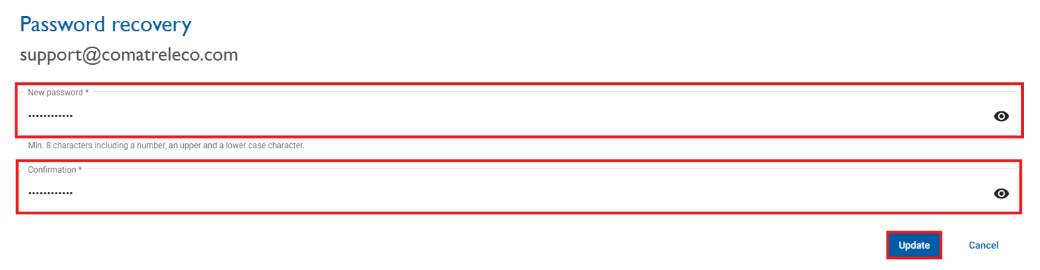
Password requirements:
- at least 8 characters,
- at least one number,
- at least one uppercase letter,
- at least one lowercase letter.
After successfully updating your password, you can log in to the IoT portal as usual.
To allow the support team temporary remote access to your device, you must first start a support session in the IoT portal.
Open the IoT portal and select the affected device. Then navigate to the Support section at the very bottom of the left-hand menu.
Activate the button “Allow remote access” and confirm your selection. After confirmation, the support team will be able to access the device.
Remote access is time-limited and will automatically end after one hour.
Important:
Please contact support after the support session has been started,
so that access to the device is possible during the active remote session.
You can reach our support team by phone at:
+41 31 838 55 77
Short answer:
SMS messages are technically divided into segments.
If non‑standard characters such as ä, ö, ü or other special characters are used, a message requires more segments, even though it appears as a single SMS to the recipient. As a result, multiple SMS are charged.
Each message sent by the system always consists of:
- the device name
- the notification text
- a timestamp (YYYY‑MM‑DD HH:MM:SS)
These elements further increase the total message length.
Solution:
- Avoid special characters and replace non‑standard letters
- Keep texts and/or device names short
Detailed explanation (for those interested):
SMS messages are not always transmitted as a single message. If necessary, they are split into multiple segments.
A single SMS can contain up to 140 bytes of user data.
The number of characters depends on the encoding used:
- GSM standard alphabet (3GPP 23.038): 7 bits per character → up to 160 characters
- UCS‑2 (for special characters): 16 bits per character → max. 70 characters per segment
If this limit is exceeded, the message is split into multiple concatenated segments. They appear as a single message to the recipient but are technically transmitted separately and counted individually.
Additionally, each message sent by the IoT portal or CMS device always contains:
- the device name
- the notification text
- the timestamp
These fixed elements reduce the available space for the actual message text, making segmentation more likely.
All relevant documents for the CMS‑10R are available directly on the product page of the respective device.
In the product view, you can access the following documents, among others:
- Datasheet
- User manual
- CAD data
- Service profiles
在物联网门户网站上创建账户
– 哪些网页浏览器可以用于ComatReleco物联网门户网站https://iot.comatreleco.com?
➔ 我们推荐使用Google Chrome或Mozilla Firefox。这些浏览器必须为最新版本(可在“帮助”/“关于Google Chrome”或“关于Mozilla Firefox”中查看)。
Microsoft Edge 83.0.478.64 及以上版本也可使用。
– 如何首次连接到物联网门户?
➔ 在网站 https://iot.comatreleco.com 上选择并填写所有必填项。使用您的电子邮件和密码连接到物联网门户。参见 CMS-10R 安装说明
– 我应该使用什么密码?
➔ 密码必须至少 8 个字符,包括一个数字、一个特殊字符、一个大写字母和一个小写字母。
– 为什么我没有收到电子邮件?
➔ 请检查设备配置,并检查垃圾邮件过滤器和防火墙设置。
– 如何重置密码?
➔ 在物联网门户网站上点击“重置密码”按钮,然后输入该帐户使用的电子邮件地址。您将收到一封包含“重置我的密码”链接的电子邮件。点击该链接,即可创建并确认新密码。
首页
– 如何设置或更改帐户设置?
➔ 在物联网门户网站右上角,在您的姓名和电子邮件地址下,点击“账户设置/个人资料”。
– 我在哪里可以更改密码?
➔ 在物联网门户网站右上角,在您的姓名和电子邮件地址下,点击“账户设置/密码”,或在物联网门户网站首页,点击https://iot.comatreleco.com/
– 如何自动购买新的短信套餐,以确保短信的发送(例如,用于连接电话服务器或警报服务器)?
➔ 在物联网门户网站右上角,在您的姓名和电子邮件地址下,在“账户设置/短信套餐”下。您可以激活自动续订,选择短信包数量,并指定自动购买的限额。
– 如何为所有设备购买短信包?
➔ 在物联网门户网站的右上角,在您的姓名和电子邮件地址下,在“账户设置/短信包”下。您可以选择短信包的数量。
– 我在哪里可以查看所有设备购买的短信套餐账单?
➔ 在物联网门户网站右上角,在您的姓名和电子邮件地址下,在“账户设置/短信套餐/短信套餐历史记录”中。
– 我如何查看设备概览?
➔ 在物联网门户网站的设备概述中,您可以查看您拥有多少台设备。您可以选择设备视图或列表视图。使用搜索功能搜索设备中的名称。您可以将设备分类为“我的设备”、“我分配的设备”和“我安装的设备”。
– 如何添加设备?
➔ 在物联网门户网站上,您可以使用“添加设备”按钮设置新设备或使用邀请代码添加现有设备。请参阅安装说明:
– 如何更新输入和输出的视图?
➔ 在物联网门户中,选择“更新”按钮或键盘上的 F5 键。
服务配置文件
– 我可以使用哪些服务配置文件?
➔ 在物联网门户的“服务配置文件”下,所有者可以选择三种订阅(经济型、标准型和专业型)(链接)。
– 如何设置或更改服务配置文件?
➔ 只有设备所有者才能在物联网门户网站的“服务配置文件/更改服务配置文件”中进行此操作。此外,他还可以在自动或手动续订服务配置文件。
– 我在哪里可以找到已购买的服务配置文件的发票?
➔ 只有设备所有者才能在物联网门户网站的“服务配置文件/服务配置文件历史记录”中查看。
– 我在哪里可以购买短信套餐?
➔ 只有设备所有者才能在物联网门户网站的“服务配置文件/购买短信套餐”或“账户设置/短信套餐”中进行操作。
– 我在哪里可以查看已购买的短信套餐的账单?
➔ 只有设备所有者才能在物联网门户网站的“账户设置/短信套餐/短信套餐历史记录”中查看。
– 什么是事件?
➔ 事件是通过电子邮件推送消息或短信消息传递的信息。根据服务配置文件,每月可使用一定数量的事件。
– 语音通话的费用是多少?
➔ 每次语音通话将从短信账户中扣除四条短信。
– 寻呼机消息的费用是多少?
➔ 每次寻呼机通知将从短信账户中扣除一条短信。