

CMS-10R 4G Relay Documentation
The CMS-10R is a remote monitoring and switching device for industrial and building technology. It reports status changes of the digital or analogue inputs via the existing mobile network by push, e-mail, SMS, voice or pager notification. The outputs are controlled via push notification from a web browser or smart app. Appropriately configured outputs of the relay can also be addressed via the call-in function. The CMS-10R automatically selects the mobile network generation (4G, 3G, 2G) with the highest field strength on site.
|
|
Video tutorials
Create account
Add device
Set up user
IoT Portal
How can I receive an annual consolidated invoice for all CMS‑10R devices?
To receive an annual consolidated invoice for all CMS‑10R devices, you must first create a billing group and then assign the relevant devices to this group.
- Open your profile.
- Go to the account settings in the top right corner.
- Select Billing groups.
- Create a new billing group.
- Configure the billing period and payment method.
- Save the settings by selecting Apply.
- Then switch to the device view and open the Service profile of each device.
- Assign all CMS‑10R devices individually to the created billing group.
Note:
Billing groups can only be created and managed by the owner of the devices.
How do I transfer a CMS‑10R device to a new owner?
To change the owner of a CMS‑10R device in the IoT portal, proceed as follows.
Open the IoT portal at iot.comatreleco.com on your PC, laptop or tablet and sign in with your credentials.
Select the desired CMS‑10R device to open the device view.
Open the Manage tab in the menu.
Click the blue button Change owner.
Enter the email address of the new owner.
You will also be asked “Are you the owner of the device?”.
This refers to the future owner:
Installers who set up the device for a customer select No.
Owners who want to transfer the device to another person select Yes.One of the following messages will appear in the info box.
6.1 Existing user
If the new owner already has an IoT portal account, an ownership request email is sent.
Important:
If the new owner has no payment method stored, the device cannot be transferred and no invitation is sent.
The future owner must first add a payment method in the IoT portal.
After that, the current owner can start the transfer again.
Once the invitation has been sent, the new owner must sign in to the IoT portal and confirm the request using the link in the email.6.2 User not found in the database
If the new owner does not yet have an IoT portal account, an invitation to create an account is sent by email.
After creating and verifying the account, the ownership request can be accepted via the link in the email.
A user account is mandatory, as these details are used for future billing.Once the ownership request has been accepted, the previous owner receives a confirmation email.
Until the invitation is accepted, the device remains the property of the current owner, including ongoing billing.
Note:
If the ownership or billing details should not be updated by the user, the change can be carried out by us.
This service is subject to a fee.
For this purpose, a fully completed order form is required.
This service is subject to a fee.
For this purpose, a fully completed order form is required.
Why do I need to add a payment method and how do I set it up?
The annual cost of the CMS‑10R service profile is paid by the owner of the device.
Every user must first set up a default payment method before a device can be transferred to them.
Users who only receive notifications but do not own a device do not need to provide payment information.
Set up a payment method
- Sign in to the IoT portal at iot.comatreleco.com.
- Open Account Settings in the upper right corner.
- Go to the Payment Method submenu.
- Click Add Payment Method.
- Enter your credit card details.
- Complete the process by clicking Add.
- The new payment method will then appear in the overview.
- Set the newly created payment method as the default.
Note
Due to geo‑blocking and other security mechanisms used by some banks, the country of the credit card must typically match the user's current location when the payment method is created.
What happens next?
All purchases and paid services within the IoT portal will be charged to the default payment method.
How can I update the billing address for my CMS‑10R device?
The billing address can only be changed by the owner of the device in the IoT portal.
- Open the IoT portal at iot.comatreleco.com and sign in using your email address and password.
- Open the account settings. There you can update your billing details.
- Save the changes to apply the updated information.
Note:
If the owner is a company, a valid VAT number must be provided.
These details are used for future billing.
How can I reset my password for the IoT portal?
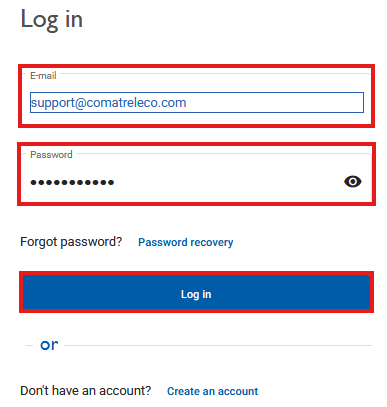
If you have forgotten your password for the IoT portal, you can use the “Reset password” function to set a new password for your account.
Procedure
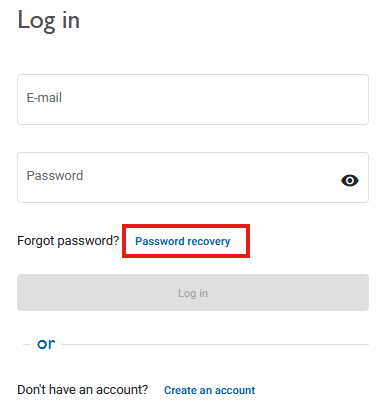
- Open the IoT portal in your web browser or mobile app at iot.comatreleco.com.
- Click “Reset password” in the login window.
-
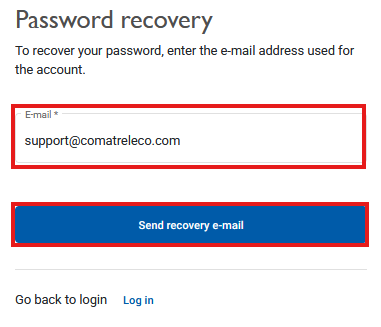
Enter your email address and click
“Send recovery email”.
You will receive an email shortly from ComatReleco IoT Portal .
If you do not receive an email, please check:
- your spam folder,
- whether you used the email address associated with your account,
- for possible typing errors in the email address.
Set a new password
Open the email and click the link “Reset my password”.
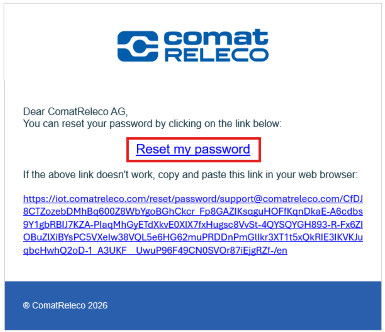
A new window will open in your web browser or app.
Enter your new password and repeat it for confirmation.
Click “Update” to save the new password.
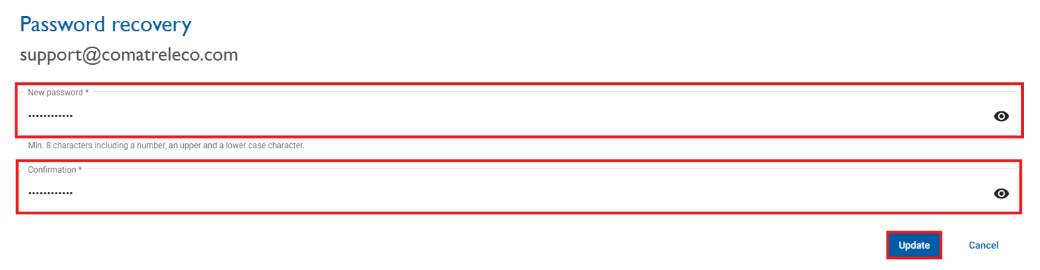
Password requirements:
- at least 8 characters,
- at least one number,
- at least one uppercase letter,
- at least one lowercase letter.
After successfully updating your password, you can log in to the IoT portal as usual.
How can I enable remote access for support to my device?
To allow the support team temporary remote access to your device, you must first start a support session in the IoT portal.
Open the IoT portal and select the affected device. Then navigate to the Support section at the very bottom of the left-hand menu.
Activate the button “Allow remote access” and confirm your selection. After confirmation, the support team will be able to access the device.
Remote access is time-limited and will automatically end after one hour.
Important:
Please contact support after the support session has been started,
so that access to the device is possible during the active remote session.
You can reach our support team by phone at:
+41 31 838 55 77
Why are more SMS deducted from my account than actually sent?
Short answer:
SMS messages are technically divided into segments.
If non‑standard characters such as ä, ö, ü or other special characters are used, a message requires more segments, even though it appears as a single SMS to the recipient. As a result, multiple SMS are charged.
Each message sent by the system always consists of:
- the device name
- the notification text
- a timestamp (YYYY‑MM‑DD HH:MM:SS)
These elements further increase the total message length.
Solution:
- Avoid special characters and replace non‑standard letters
- Keep texts and/or device names short
Detailed explanation (for those interested):
SMS messages are not always transmitted as a single message. If necessary, they are split into multiple segments.
A single SMS can contain up to 140 bytes of user data.
The number of characters depends on the encoding used:
- GSM standard alphabet (3GPP 23.038): 7 bits per character → up to 160 characters
- UCS‑2 (for special characters): 16 bits per character → max. 70 characters per segment
If this limit is exceeded, the message is split into multiple concatenated segments. They appear as a single message to the recipient but are technically transmitted separately and counted individually.
Additionally, each message sent by the IoT portal or CMS device always contains:
- the device name
- the notification text
- the timestamp
These fixed elements reduce the available space for the actual message text, making segmentation more likely.
Which documents are available for the CMS‑10R and where can I find them?
All relevant documents for the CMS‑10R are available directly on the product page of the respective device.
In the product view, you can access the following documents, among others:
- Datasheet
- User manual
- CAD data
- Service profiles
Questions about the user account
Create account on the IoT Portal
– Which web browser can be used for the ComatReleco IoT portal https://iot.comatreleco.com?
➔ We recommend Google Chrome or Mozilla Firefox. These must be up-to-date (this can be checked under Help/via Google Chrome or Mozilla Firefox). Microsoft Edge from version 83.0.478.64 onwards also works.
– How can I connect to the IoT Portal for the first time?
➔ Log on to the website https://iot.comatreleco.com and fill in all the required fields. With your email and password you will connect to the IoT-Portal. See CMS-10R user manual.
– What kind of password do I have to use?
➔ The password must be at least 8 characters long and consist of a number, a special character, upper and lower case letters.
– Why am I not receiving an email?
➔ Check the device configuration and check the spam filter and firewall settings.
– How can I reset my password?
➔ In the IoT Portal, click the Reset Password button and enter the e-mail address used for this account. You will receive an email with a link to reset my password. By clicking on the link, you can create and confirm a new password.
Home page
– How can I set up or change my account settings?
➔ In the IoT Portal in the top right-hand corner under your name and e-mail address under Account Settings/Profile.
– Where can I change my password?
➔ In the IoT Portal top right, under your name and e-mail address, under Account Settings/Password, or on the IoT Portal home page, at https://iot.comatreleco.com/
– How can I automatically purchase new SMS packages to ensure that the SMS messages are sent (e.g. for connections to telephone servers or alarm servers)?
➔ In the IoT Portal, top right, under your name and e-mail address, under Account Settings/SMS Package. You can activate Automatic purchase, select the number of SMS packages and specify a limit for automatic purchase.
– How can I buy SMS packages for all my devices?
➔ In the IoT portal, in the top right-hand corner, under your name and e-mail address, under Account Settings/SMS Package. You can select the number of SMS Packages.
– Where can I see the invoice for my purchased SMS packages above all devices?
➔ In the IoT Portal, top right, under your name and e-mail address, under Account Settings/SMS Package/SMS Package history.
– How do I have an overview of the equipment?
➔ In the IoT-Portal on the device overview you can see how many devices you have. You can choose between the Device and ist view. Use the search function to search for names contained in the device. The selection of devices can be filtered into My owned devices, My assigned devices and My installed devices.
– How can I add a device?
➔ In the IoT Portal with the Add a Device button you can Set up a new device or add an existing Device With invitation code. See installation instructions.
– How can the view of the inputs and outputs be updated?
➔ In the IoT Portal, press the Refresh button or select F5 on the keyboard.
Service profile
– How can I create or change a service profile?
➔ This can only be done by the Owner of the device in the IoT Portal under Service profile/Change service profile. He also has the option of Renewal of the service profile automatically or manually.
– Where can I find the invoice for my purchased service profile?
➔ This can only be viewed by the Owner of the device, in the IoT Portal under Service profile/Service profile history.
– Where can I buy SMS packages?
➔ Only the Owner of the device can do this in the IoT Portal under Service profile/Purchase SMS Packages.
– Where do I see the invoice for my purchased SMS packages?
➔ Only the Owner of the device can see this in the IoT Portal under Account Settings/SMS Package/SMS Package History or under Account Settings/SMS Package.
– What is an event?
➔ An event is an information forwarding via e-mail push message or SMS message. A certain number of events per month is available, depending on the service profile.
– How much does a voice call cost?
➔ Four SMS are deducted from the SMS available account per voice call.
– How much does a pager message cost?
➔ One SMS is deducted from the SMS account per pager message.